
Document Overview
If you are a user that uploads your payroll data via our payroll upload process, you can follow the below steps to upload your payroll data. We recommend uploading this data each time you process payroll to be able to monitor compliance throughout the year to reduce the risk of penalties. If you have any questions, please contact your ACA Reporter Representative or our support team at support@points-north.com or call us at 888-561-2072.
Upload and Process
The Upload and Process page will allow for a user to upload payroll data for locations individually. If you have multiple locations and have an aggregated payroll file, you can utilize our Centralized Upload and Process page. These steps will take place after your payroll data is formatted to match our ACA Payroll File template.
- Navigate to Payroll Processing >> Upload and Process
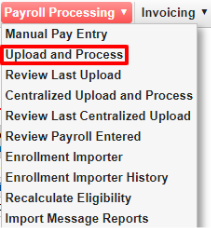
- If you have multiple locations, select the location you are uploading payroll data for using the dropdown box next to your organizations name on the top of the page.
- Select Choose File and select the payroll file saved on your computer.
- Enter the Pay Period Start Date.
- Select Upload and Process

- If you receive any warnings or errors, please review them.
- If unsure of how to resolve any errors, contact your ACA Reporter Representative or the Points North Support team at 888-561-2072 or support@points-north.com.
Centralized Upload and Process
If you have multiple locations and have an aggregated payroll file, you can utilize our Centralized Upload and Process page to upload your payroll data. These steps will take place after your payroll data is formatted to match our ACA Payroll File template.
- Navigate to Payroll Processing >> Centralized Payroll and Upload
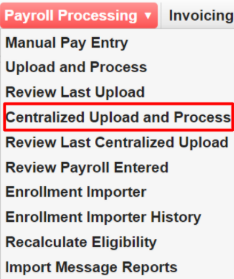
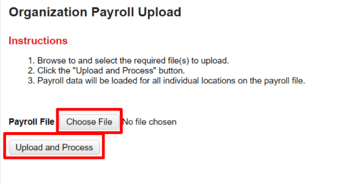
- Select Choose File and select the payroll file saved on your computer.
- Select Upload and Process
- If you receive any warnings or errors, please review them.
- If unsure of how to resolve any errors, contact your ACA Reporter representative or the Points North Support team at 888-561-2072 or support@points-north.com.